
Vitals 1.10 lets you run your Mac’s fans. Leave them to macOS, set each fan to a speed, or draw a curve that speeds them up as the Mac warms. It came out today.
If you haven’t used it, Vitals is an Activity Monitor alternative for Mac. It groups every process under the app it belongs to, so you see about 60 apps instead of 1,000 processes. I wrote about why I built it when it came out.
Why fan control
macOS decides when the fans run, and it waits. On a MacBook Pro the fans often stay at their slowest until the chips are already hot, then they catch up. During a long build or an export that means a hot Mac first and a loud one after.
Vitals already showed temperatures and fan speeds. 1.10 lets you set them, and keeps each fan within the speeds the Mac allows for it.
The Fans tab
Temperature & Fans is now a tab of its own, in the window and in the menu bar dropdown.
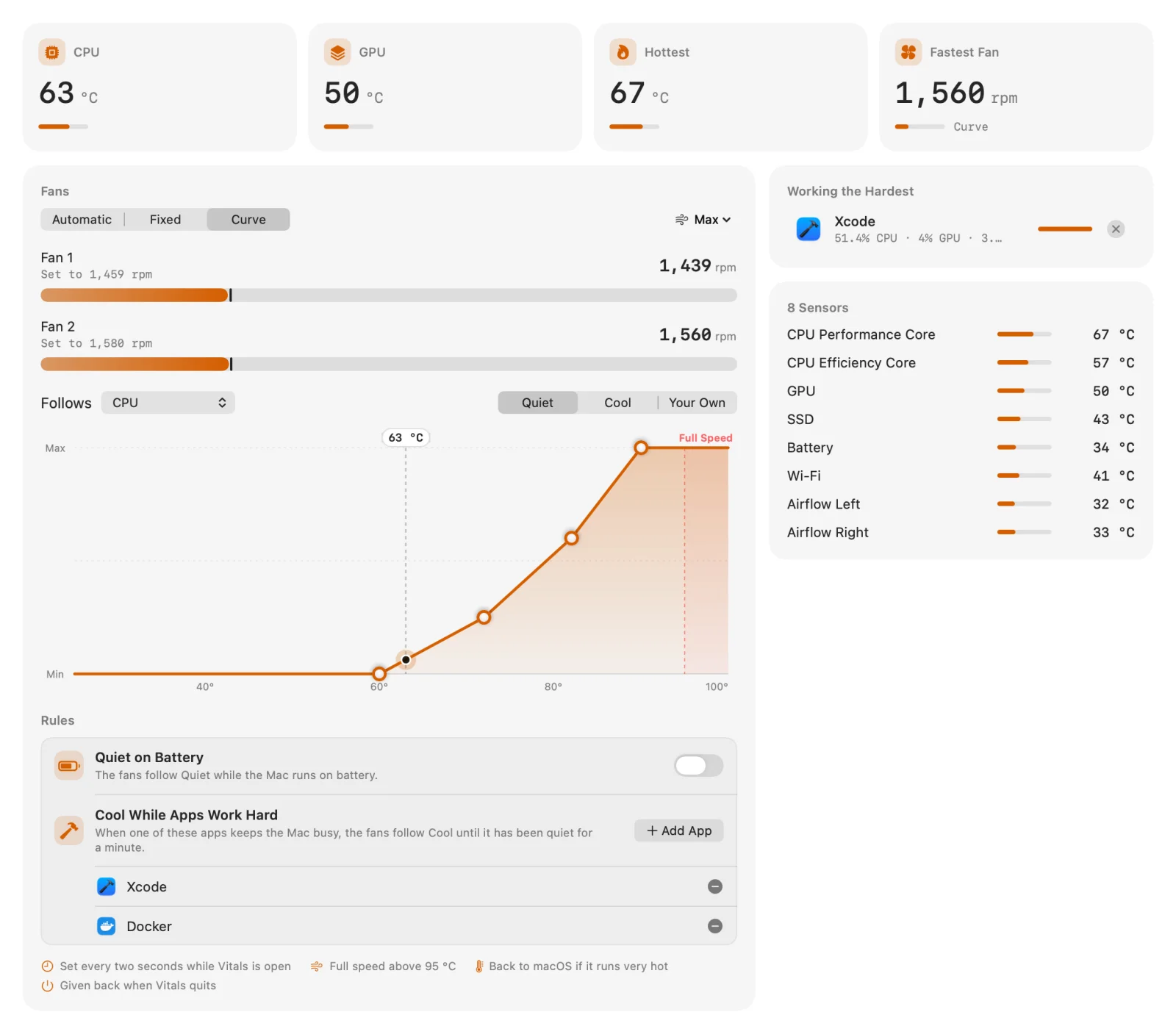
At the top are the CPU, the GPU, the hottest sensor and the fastest fan. Under the fans you choose how they run:
- Automatic. macOS runs them, as before.
- Fixed. Each fan gets a slider. Let go, and it goes to that speed and stays there through restarts and sleep.
- Curve. The fans follow a temperature: slow while the Mac is cool, faster as it warms.
The first time, the controls are greyed out. Click Turn On Fan Control… and allow Vitals once in System Settings → General → Login Items. It uses the same small helper as Full System Metrics, so if that is already on, you’re set.
How to set a fan curve on Mac
Choose Curve, then choose what the fans follow: the CPU, the GPU, the hottest sensor, or the battery on a laptop.
Start from one of the two presets:
- Quiet keeps the fans at their slowest until 60 °C, then speeds them up to full by 90 °C.
- Cool moves air from the start and reaches full speed by 82 °C.
Drag any point to change it. The curve becomes Your Own, and the fans follow it as soon as you let go. The dot on the line shows where the fans are right now.
A few things stay true whatever the curve looks like. Above 95 °C the fans run at full speed. If macOS reports the Mac running very hot, Vitals hands the fans back to it. And when Vitals quits, macOS takes over again straight away.
From the menu bar
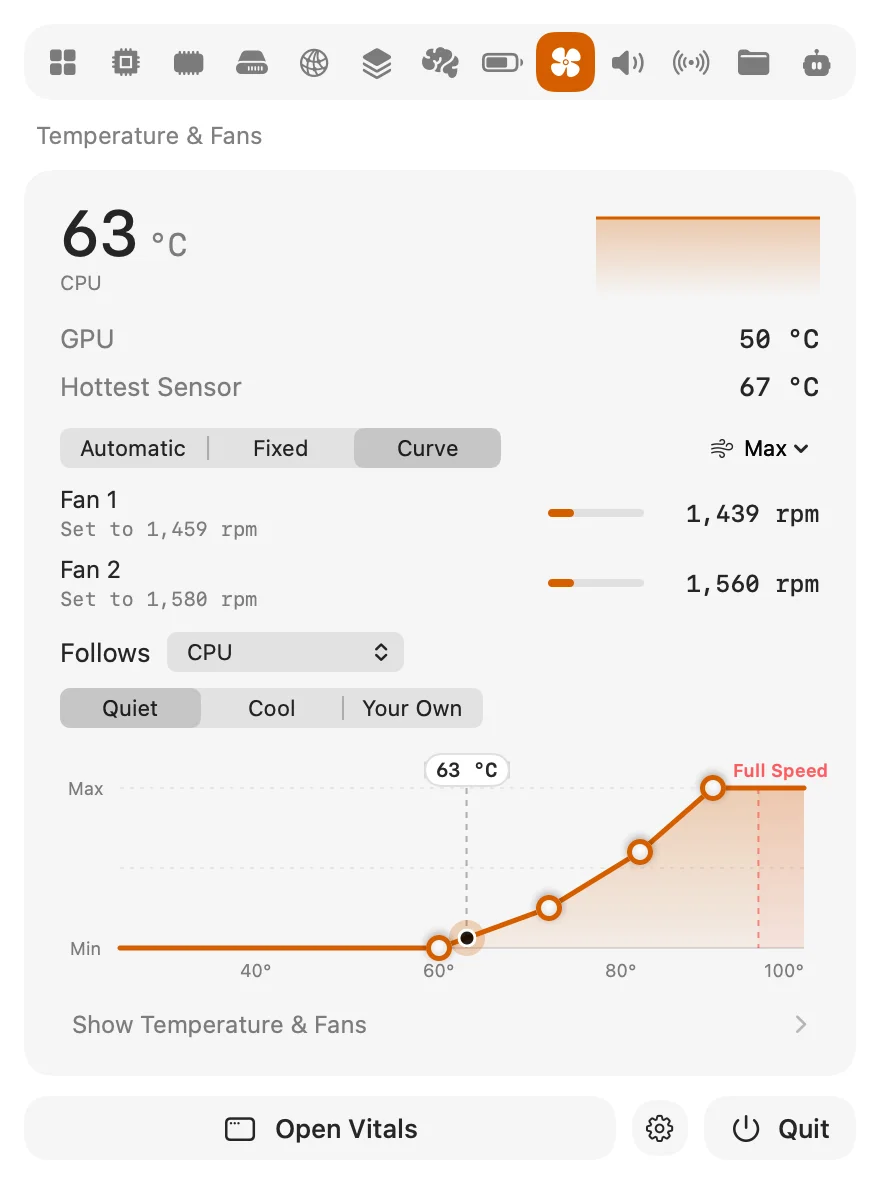
Everything in the window is in the dropdown too: the three modes, a slider per fan, and the curve with its presets and points to drag. You don’t need to open the window to change the fans.
Quiet on battery, cool while you build
Two rules change the curve for you, and your own curve comes back when they let go.
- Quiet on Battery puts the fans on Quiet while the Mac runs on battery.
- Cool While Apps Work Hard puts them on Cool while an app you pick keeps the Mac busy, such as Xcode during a build. It lets go a minute after the app calms down. Click Add App to pick one from the apps running now.
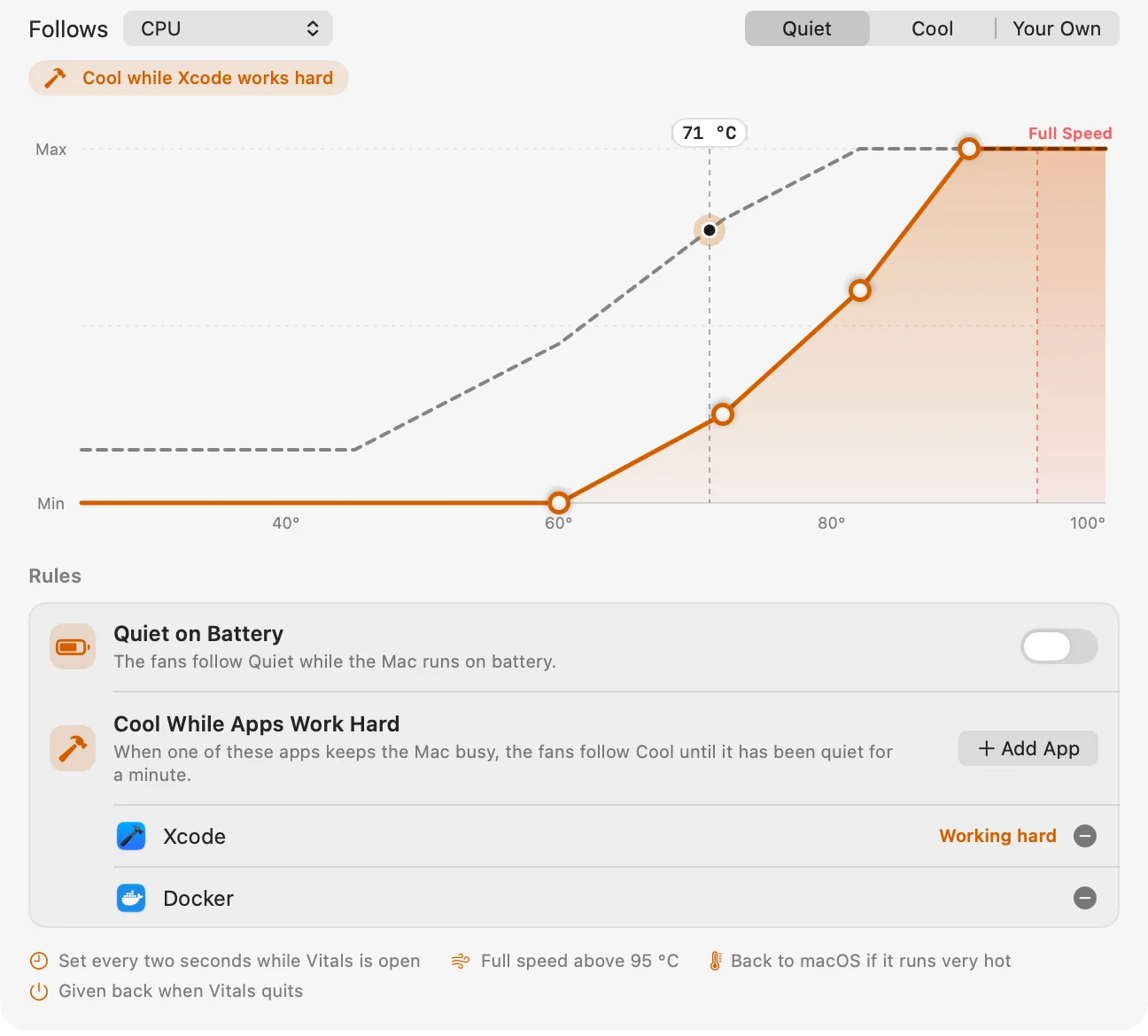
When a rule is in charge, its curve is drawn dashed over yours, with a line above the chart that says why. Each app in the list has its icon, and the one keeping the Mac busy is marked Working hard.
Full speed for a while
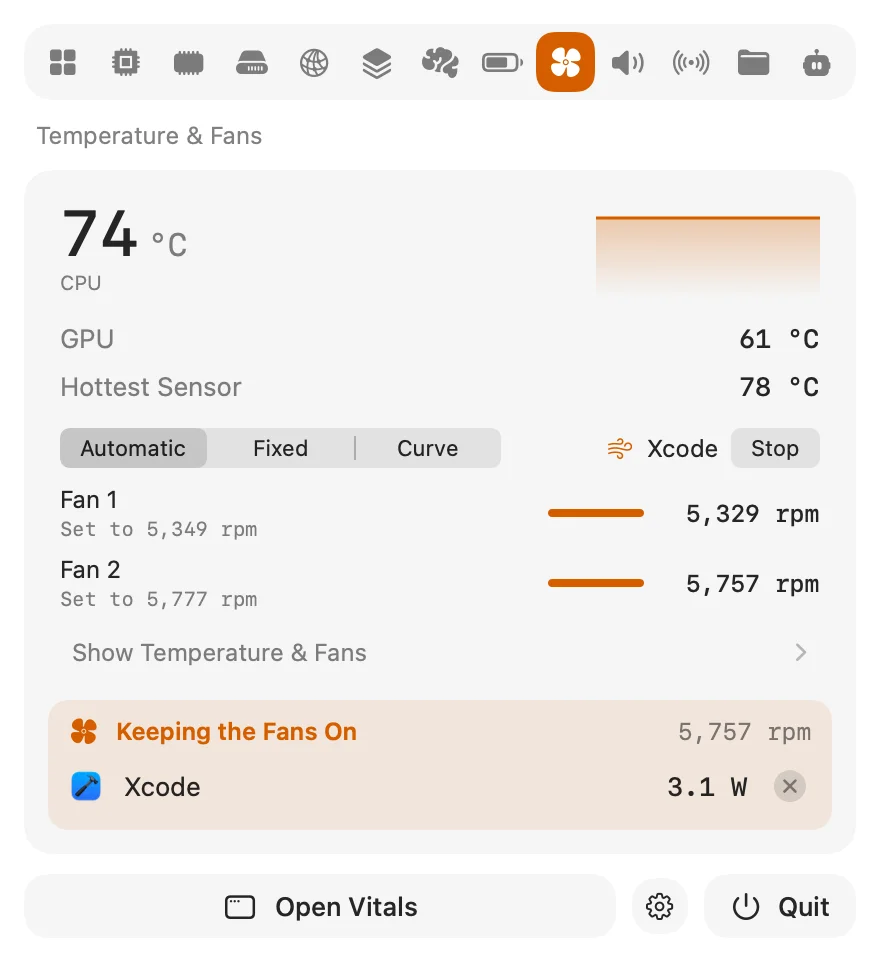
Max runs the fans at full speed for 5, 15 or 30 minutes. Start it before a long build or a render, so the Mac starts cool instead of catching up. While an app is working hard, Max can also run until that app has finished. Then the fans go back to how they were. Stop ends it early.
What made the fans loud
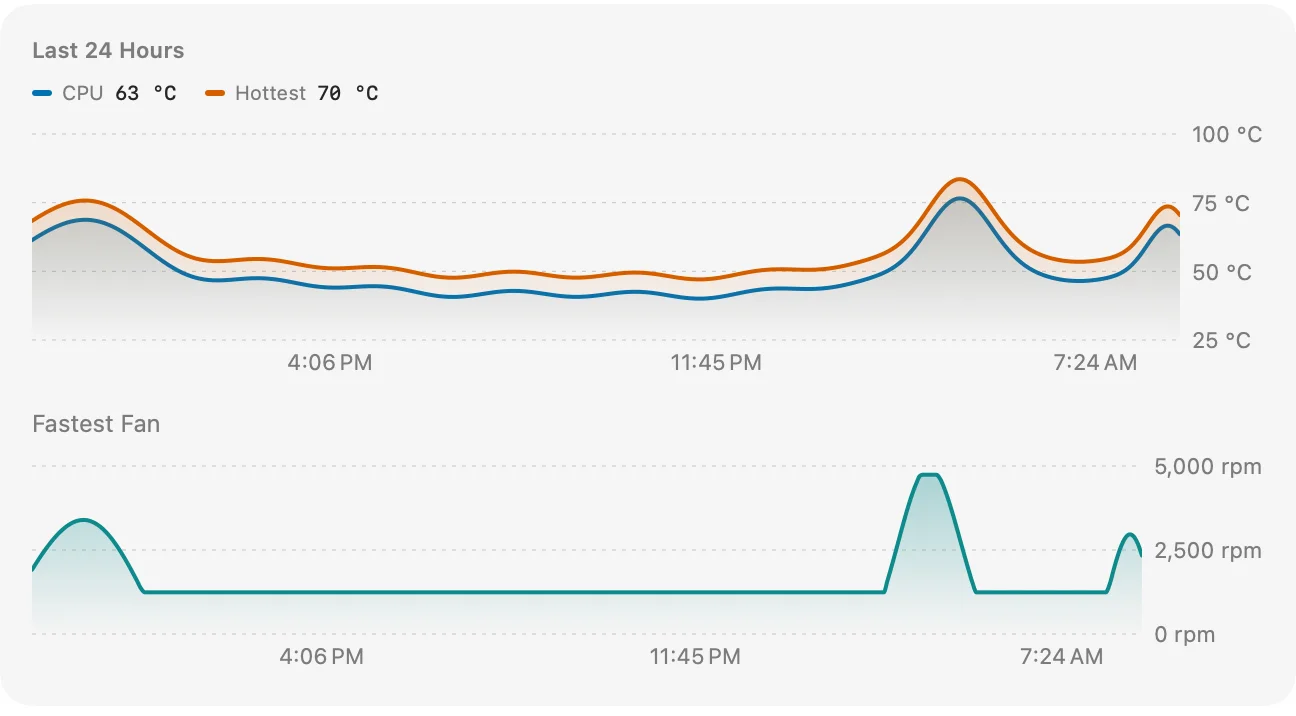
The Fans tab also lists every temperature sensor the Mac reports, the app keeping the fans on with Quit beside it, and the last 24 hours. The CPU and the hottest sensor are drawn over the fastest fan, so a fan that was loud this morning has a reason next to it.
From Shortcuts and AI assistants
There are two new actions in Shortcuts. Set the Fans gives the fans back to the Mac or puts them on your curve. Run the Fans at Full Speed runs them for the minutes you choose. Put one at the start of a build shortcut, or on a Focus.
Claude, Codex and Cursor see how the fans are being run, and why, through Vitals’ MCP server. So you can ask “why are my fans so loud right now?” or “which app has been keeping my Mac hot today?”
Which Macs does it work on?
Macs with fans, on Apple silicon and Intel, running macOS 15 Sequoia or later. I’ve tested it on an M2 Max; other Macs use the same controls. A MacBook Air has no fans, so there the tab is called Temperature and shows the sensors.
If a fan on your Mac doesn’t follow, email me with the model and I’ll look into it.
How to get it
The update is free for everyone who owns Vitals. In Vitals, choose Check for Updates. New to Vitals? Get it for Mac, or try it free for 3 days first. There is a page for temperature and fans and one for the release, with a step-by-step for each part.