
Flit 1.5 is out. It transcribes recordings: hand it an audio or video file, and the transcript comes back on your Mac, with nothing uploaded.
If you missed the launch, Flit is a private dictation app for Mac. Hold a key, talk, let go, and finished text lands in whatever app you are in. Everything runs on the Mac. I wrote about why I built it when it came out.
Drop in a recording
Since launch, Flit’s features page has said that transcribing recordings was next. It is here now, as a Transcribe tab in Settings.
It takes audio and video that macOS can play: MP3, M4A, WAV, AIFF, FLAC, MP4 and MOV among them. A video is read for its sound, and nothing is done with the picture. Drop the file on the tab, or click Choose File, then Transcribe.
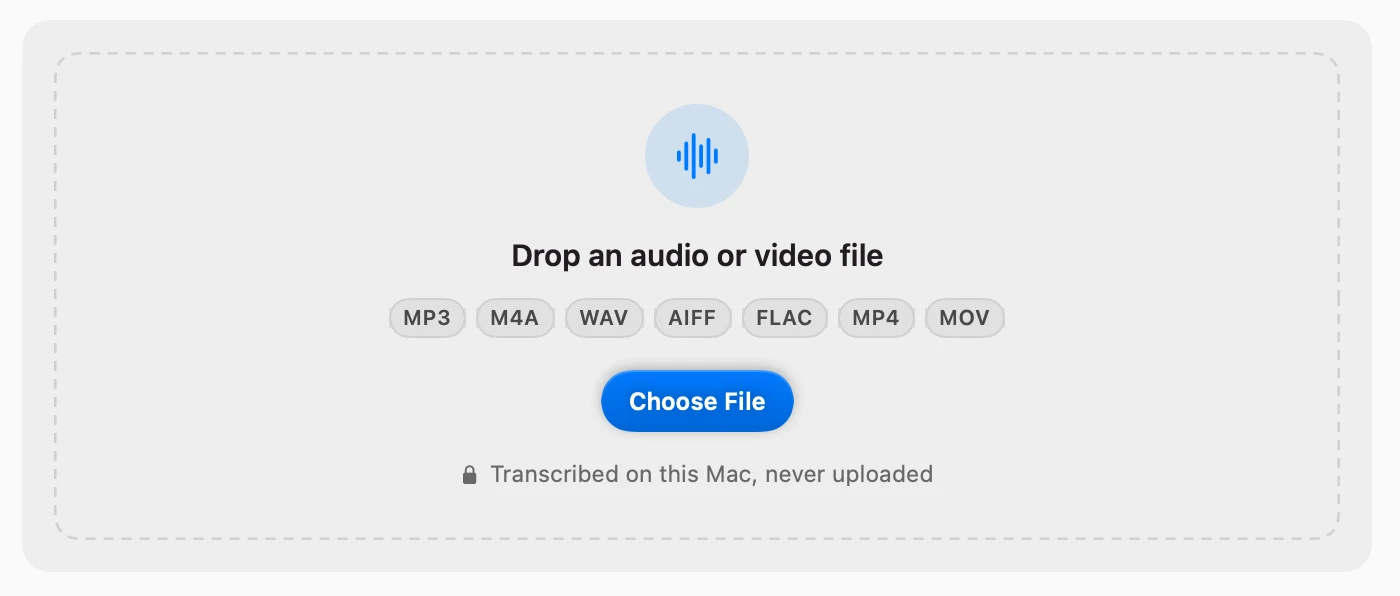
The first transcript uses the voice model you already dictate with, so there is nothing more to download.
Four more ways in
You do not have to open Settings first:
- Drop the file on the Flit icon in the menu bar.
- Right-click it in Finder and choose Services → Transcribe with Flit.
- Open it with Flit, from Open With in the same menu.
- Right-click the Flit icon and choose Transcribe File…, if you want to change the model or the formatting before it starts.
Select several recordings and they run one after another.
While it runs
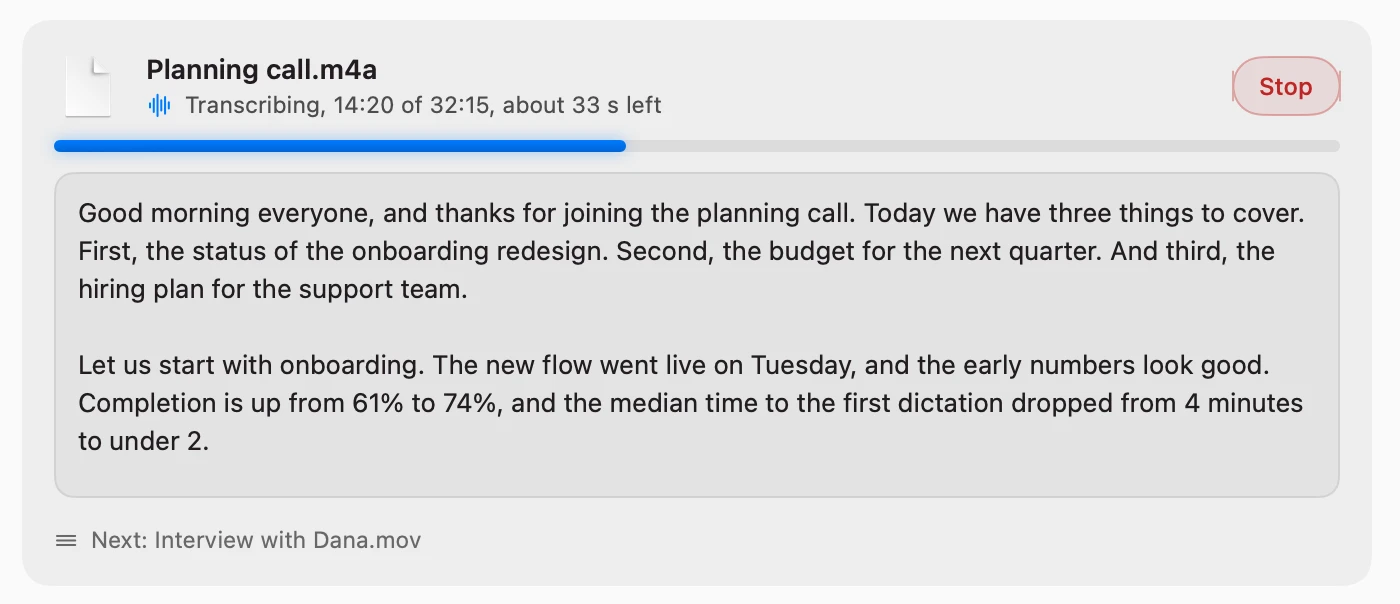
The text appears as each piece finishes, with a progress bar and about how long is left. A two-hour recording takes a few minutes: on an Apple silicon Mac with Cohere Transcribe, it took about three and a half minutes in testing.
You can close Settings and keep working. The Flit icon in the menu bar wears a ring that fills as the job goes, and a notification says when the transcript is ready.
Read it, copy it, export it
A finished transcript is split into paragraphs where the speaker paused. Copy puts it on the clipboard. Export saves it as text, Markdown, or SRT and VTT subtitles with timestamps. Every transcript is also saved as a text file in a folder you choose, and kept in the tab to open again later, with a search field once you have more than five.
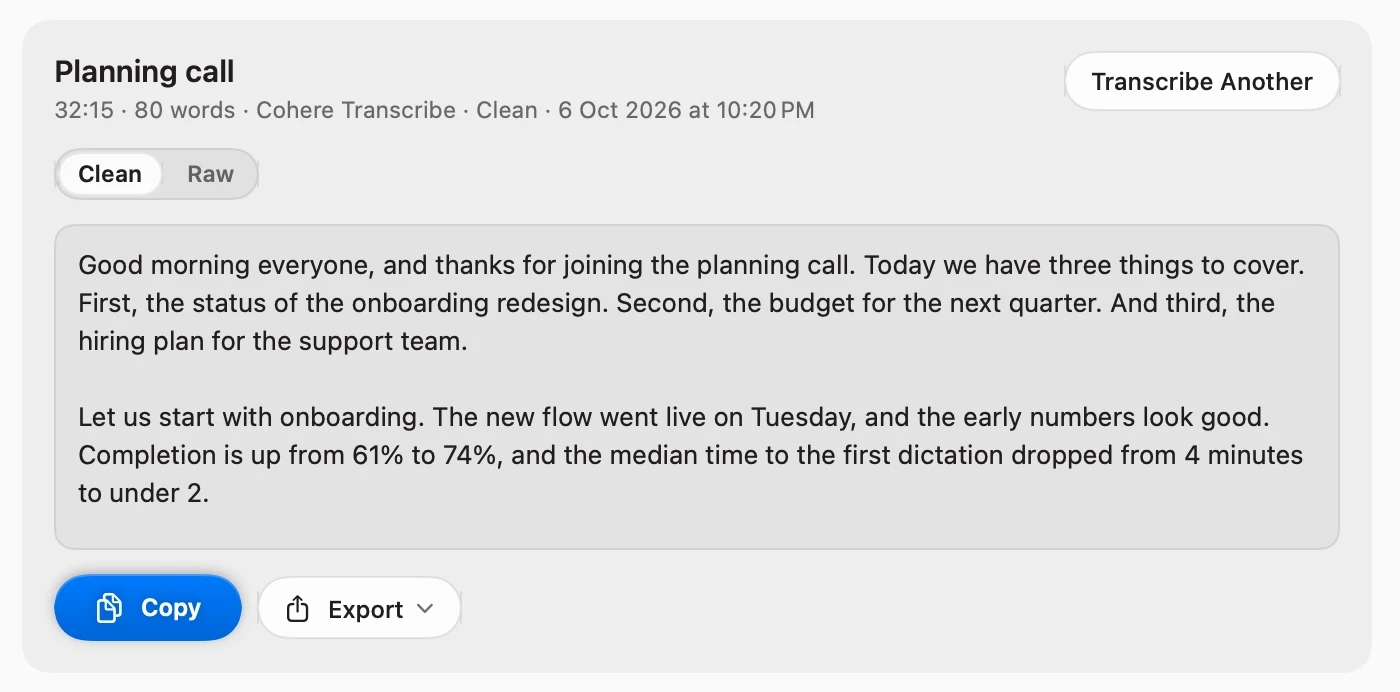
Under the title is a switch. One side is the formatted transcript. The other side, Raw, is what the voice model heard, with every hesitation and false start left in. When a sentence reads oddly, one click shows what was actually said.
Its own model and formatting
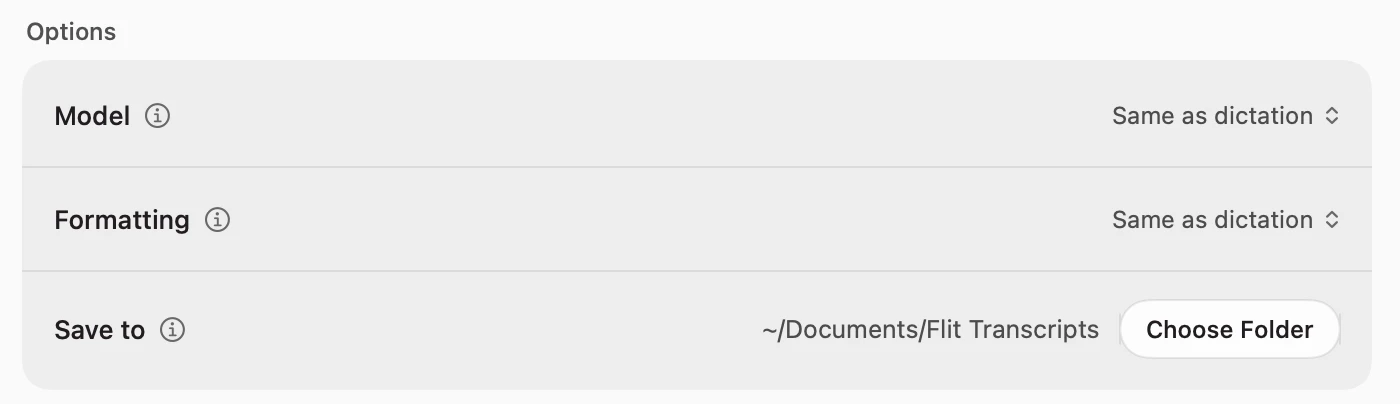
Recordings get their own settings, separate from dictation, and Flit remembers them. So you can dictate with a fast model and transcribe with an accurate one.
Formatting has three levels. Verbatim keeps every word. Clean takes out the hesitations and writes times and numbers properly, with no wait. Polished runs the formatting model over every paragraph, so a recording reads as prose. It is slower: the same two hours took about fifteen minutes.
From Terminal
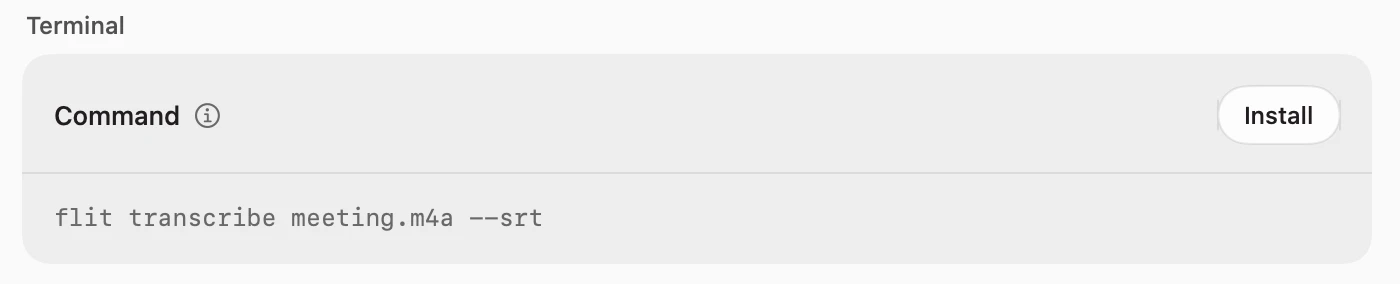
The same transcriber is a command, for a folder of recordings or a script. Install it once from Settings → Transcribe, under Terminal, and it works in any new Terminal window:
flit transcribe meeting.m4a
flit transcribe meeting.m4a --formatting clean --out ~/Transcripts --srt
It prints the transcript, with the speed and the word count on the last line. There are options for the voice model, the language, the formatting level, the output folder and the subtitle formats, and flit help lists them.
What it does not do yet
A transcript is one flow of text. Flit does not say who said what, and it does not record a meeting as it happens: you hand it a recording you already have. Speaker labels and meeting recording are both planned, and both will run on the Mac like everything else.
Also new: three more keys to hold
Flit 1.5.1 came out the same day. You can now hold Right Command, Right Option or Right Control to dictate, the way you hold Fn: hold to talk, release to insert, double-tap to lock hands-free.
Most keyboards not made by Apple never send Fn to the Mac, so these are the keys for a MacBook on a desk with an external keyboard. The key still works in your shortcuts: press another key while holding it, and Flit steps aside. Pick it in Settings → Keyboard → Activation key.
Since launch
This is the fifth feature update since the launch in September:
- 1.1 added two voice models and a dictionary that learns your names and terms.
- 1.2 added “Hey Flit” to start a dictation by voice.
- 1.3 moved the recording window into the notch.
- 1.4 lets you dictate from a button on your mouse, and change language with one key.
Every release is on the changelog.
How to get it
All of this is in Flit 1.5.1 and later. There is a page for this release with every step and answers to common questions.
The update is free for every license, since each one includes twelve months of updates. Right-click the Flit icon in the menu bar and choose Check for Updates…. New to Flit? Download it for Mac: it is free for 7 days with everything on, including the Transcribe tab.
If something you need is missing, email me.