
Vitals 1.12 puts Vitals in the notch. When Claude Code, Codex or Gemini CLI needs your permission to run a command or edit a file, the request comes out of the MacBook notch and you answer it there, without going back to the terminal. The alerts that need you come out of the notch too, with what to do about them. It came out yesterday.
If you haven’t used it, Vitals is an Activity Monitor alternative for Mac. It groups every process under the app it belongs to, so you see about 60 apps instead of 1,000 processes. I wrote about why I built it when it came out.
Why the notch
I run two or three coding agents most days, each in its own terminal, each in a different project. They stop whenever they need permission to run a command or edit a file, and they wait. I find out when I next look at that terminal, which can be twenty minutes later.
Vitals already knew which agents were running and what they were using, from the Agents tab. 1.12 lets the agent tell Vitals when it’s waiting, and Vitals tells you in the notch, which is always in view and covers nothing.
Because Vitals is also watching the Mac, the notch can tell you more than “an agent is waiting”: which project is asking, how long a turn took, and what it left running.
Approve Claude Code permission requests from the notch
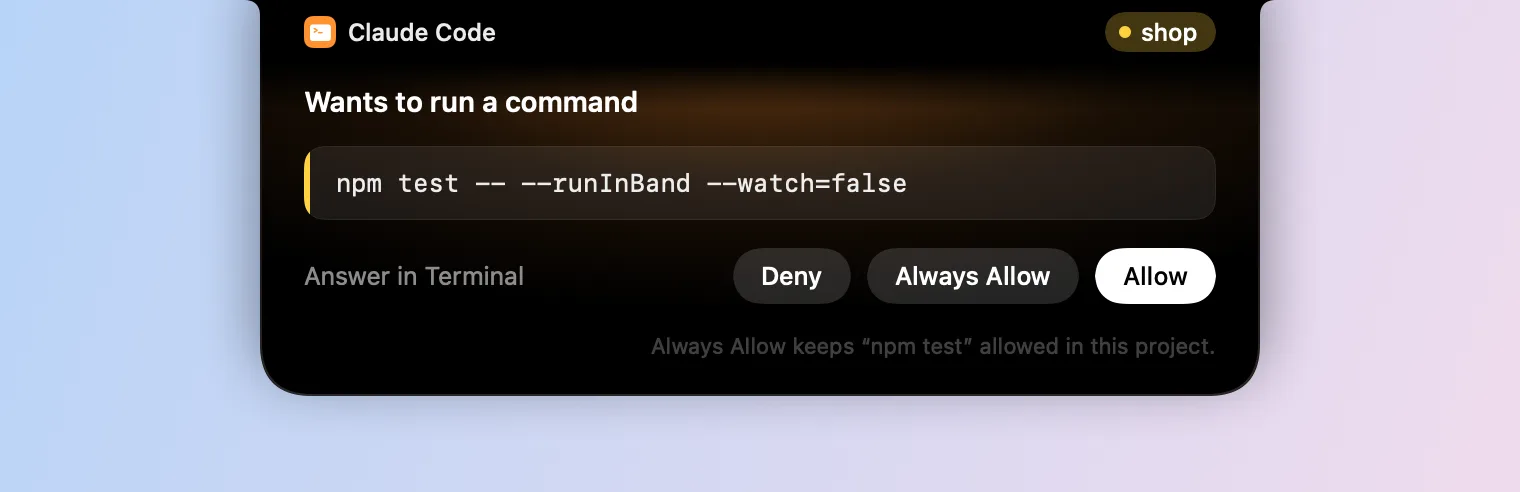
When an agent asks, a black panel grows out of the notch with the agent, the project, and the command or file it’s asking about.
- Allow lets it go on.
- Always Allow keeps the rule Claude Code itself suggests, such as allowing
npm testin this project. The line under the buttons says what it keeps. - Deny refuses it.
- Answer in Terminal leaves it to the agent’s own window and brings that window forward.
The panel never takes the keyboard from the app you’re in, so you can keep typing and answer when you’re ready. It’s left out of screenshots and screen sharing.
How to connect Claude Code, Codex or Gemini CLI
- In Vitals, open Settings → Integrations and find Coding Agents.
- Click Connect… beside the agent. Vitals shows the hooks it will add to the agent’s settings file.
- Click Connect. Sessions already running pick up the hooks when they start again.
Vitals keeps a copy of the settings file from before, and Disconnect takes the hooks out again.
See which project is asking
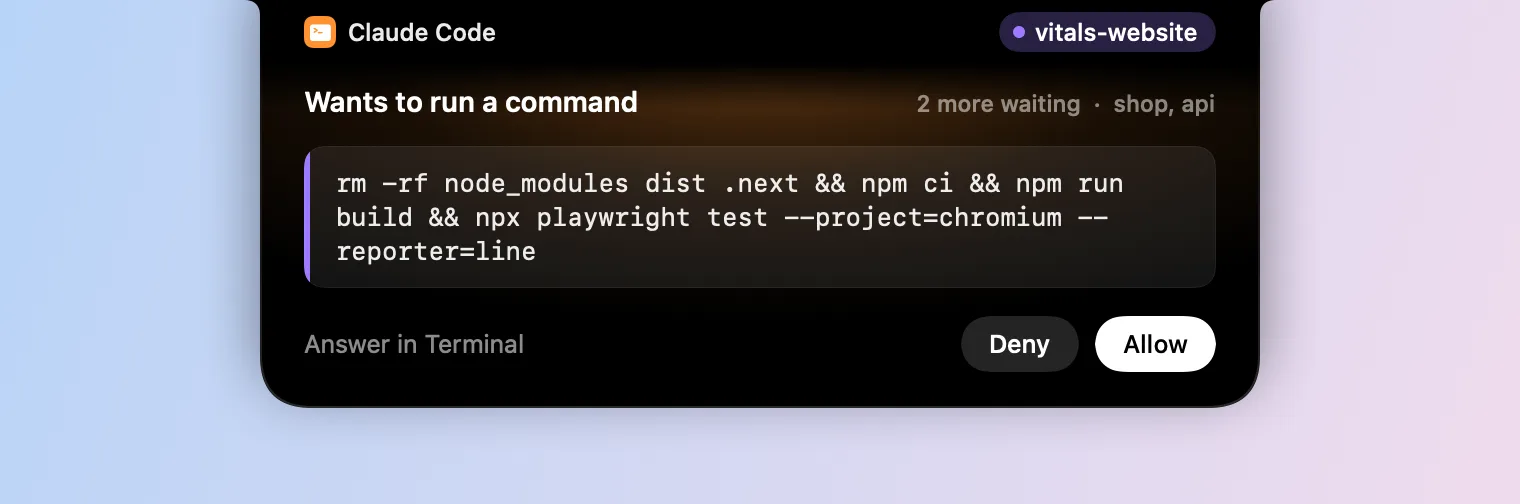
With three sessions waiting at once, it’s easy to allow the wrong one. So every project has a colour of its own, on its name beside the notch and down the edge of the command, and the notch says how many more are waiting and from which projects.
For the first moment a request is on screen, its buttons take no click, so a second click meant for the last request doesn’t land on the next one.
Answer Claude Code’s questions with a click
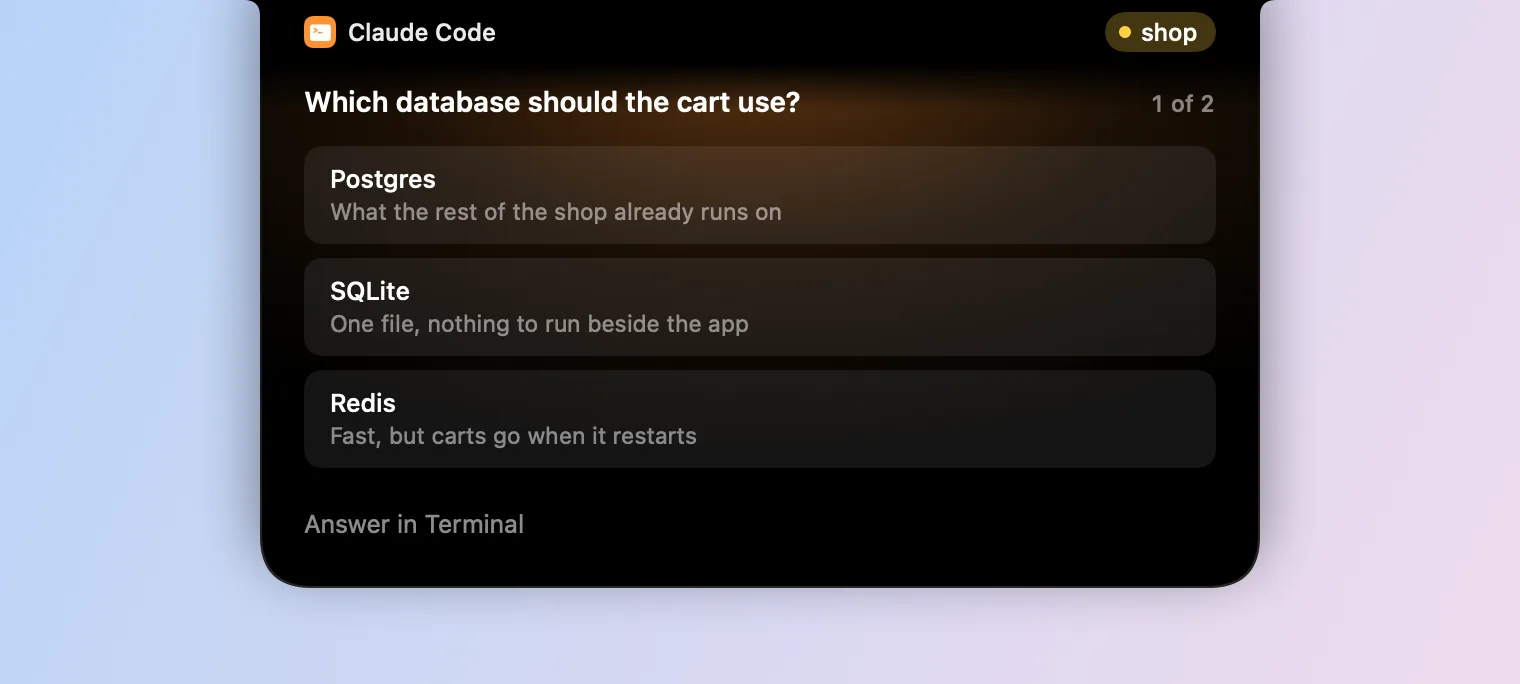
When Claude Code asks you a question with choices, the choices appear in the notch, each with what it means. A click answers it. A question that takes several answers has Next, and Done on the last. To type an answer of your own, choose Answer in Terminal.
Codex and Gemini CLI
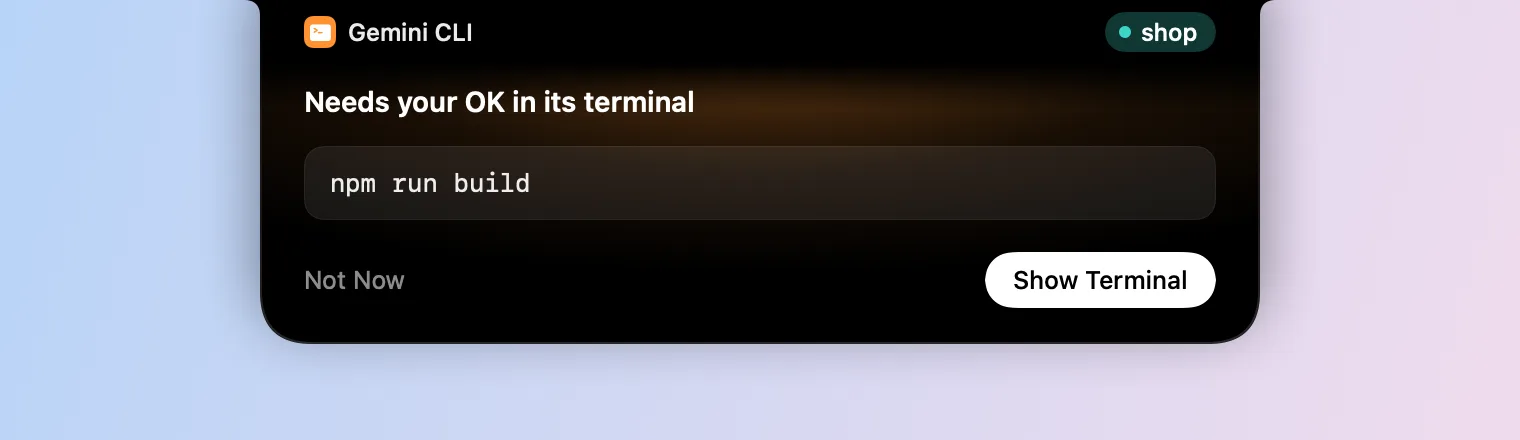
A request from Codex has Allow and Deny. Gemini CLI’s hooks can refuse a tool but can’t allow one, so only its own window can say yes. The notch tells you it’s waiting, with the command, and Show Terminal takes you there.
Know when an agent is done, and what it left running
The Agents tab and the dropdown now say what each session is doing, in the agent’s own words: Running npm test, Thinking, Needs your OK, Asked you a question or Stopped at a usage limit.
A turn that took 30 seconds or more ends with a line in the notch: the agent, the project, how long it took, and any dev servers it left running with the memory they hold.

Agents start dev servers and leave them running, and a day later you have six of them holding a few gigabytes between them. Now you hear about it when it happens. There’s more on finding them in Vitals for developers.
Memory and CPU alerts in the notch, with Quit beside them
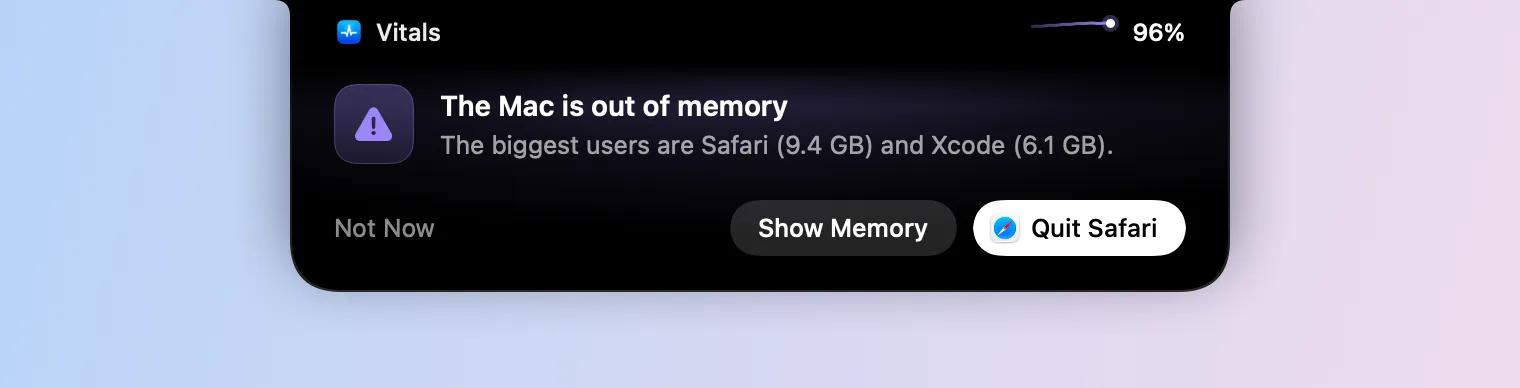
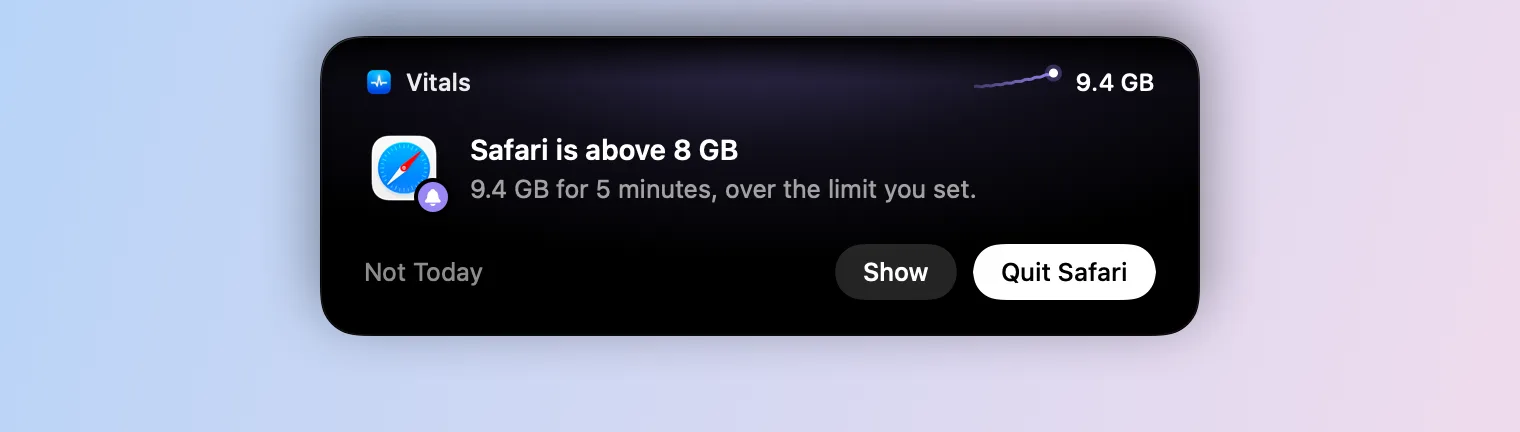
Vitals’ insights used to wait under Worth a Look, or arrive as a notification that was easy to miss and didn’t let you do anything. The ones that need you now come out of the notch: the Mac running out of memory or running hot, an app over a limit you set, an app that keeps growing in memory or keeps the CPU busy, dev servers left idle, and a stuck command.
Beside the notch is the number the alert is about, as it is now. Under it is what you can do:
- Quit quits the app the way ⌘Q does, so it can still ask you to save. When the Mac is out of memory, it offers the app using the most.
- Not Today mutes alerts about that app until tomorrow.
- Show opens Vitals on the right tab, with the app open.
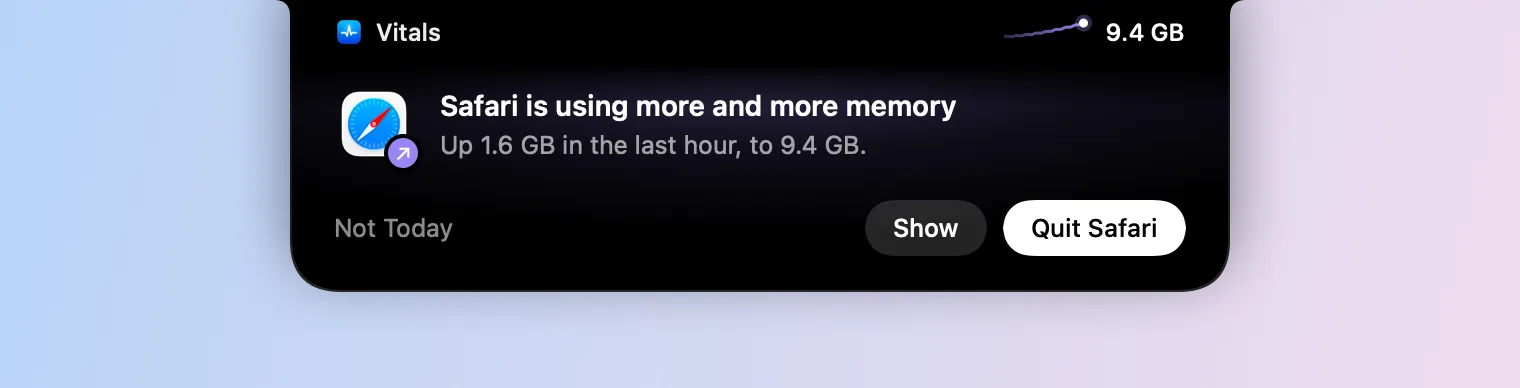
An alert goes after nine seconds unless the pointer is on it. At most one comes every two minutes, except for running out of memory and running hot, and none comes over an app in full screen. If you’d rather not have them there, Settings → Insights → Show Insights has In the Notch, As Notifications and Only in Vitals.
On a Mac without a notch
On an iMac, a Mac mini or Mac Studio, or a MacBook with its lid closed, requests and alerts come down as a card from under Vitals in the menu bar, on the screen the menu bar item is on.
Does Vitals read my prompts or my code?
No. A hook hands Vitals the event, the session, its folder and, for a permission, the command or file it’s about. Vitals keeps none of your prompts or the agent’s answers, and sends nothing anywhere.
What happens when Vitals isn’t running?
Each hook returns at once and says nothing, and the agent asks in its terminal as it did before. An agent is never held up waiting for Vitals.
Which Macs does it work on?
Any Mac on Apple silicon or Intel running macOS 15 Sequoia or later. The notch panel needs a MacBook with a notch; every other Mac gets the card under the menu bar.
How to get it
The update is free for everyone who owns Vitals. In Vitals, choose Check for Updates. New to Vitals? Get it for Mac, or try it free for 3 days first. There’s a page for the release with each part step by step, and pages on answering coding agents and alerts.